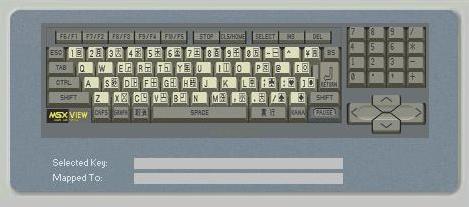
blueMSX comes with the MSXturboR GT keyboard. It's
the most complete keyboard, as it includes 2
special keys, that are only used by the intern
software of this machine (ST or GT variant). Remark
: in a future version, a bitmap of the SF-7000
keyboard will be used when you will run this Sega
computer.
The keyboard configuration is first defined by
the BIOS of the emulated machine.
The MSX keyboard is very similar to a standard PC
keyboard. The typewrite keys are almost the same
as well as the numeric keypad.
The MSX keyboard has five physical function keys.
To access function key 6 to 10 you need to hold
down the SHIFT key and press one of the keys F1
to F5.
As some MSX keys don't exist on a PC keyboard,
the emulator makes also some adjustements to
support the complete MSX keyboard. These specific
MSX keys are mapped to the following PC keyboard
keys:
|
MSX key |
|
|
PC key |
|
Select |
|
|
End |
|
Stop |
|
|
Page Up |
|
Clr Home |
|
|
Home |
|
Graph |
|
|
Left Alt |
|
Code / Kana / Hangul / Arabic / Cyrillic |
|
|
Right Alt |
|
Comma on numpad |
|
|
Page Down |
| Accent /
Underscore |
|
|
Right Ctrl |
The Panasonic MSX2+ and Turbo-R machines have two
special Japanese keys, that allow in some
programs to validate or invalidate a choice.
|
MSX key |
|
PC key |
|
Invalidate "iee " |
|
Left Windows or Back
(Explorer) |
|
Validate "hai" |
|
Right Windows or
Forward (Explorer) |
blueMSX uses also many keys or combinations of
keys for shortcuts,
that you can change in the Shortcuts Editor.
If the default mapping is source of problems, you
can change it !
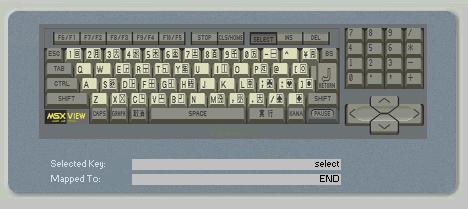
The procedure is simple, see how we can map
the MSX SELECT key to the PageUp key of the PC
keyboard :
 |
1st STEP
select the
MSX SELECT key by clicking on the virtual
keyboard
by doing that, you
can see the current mapping of the SELECT
key (to the END key of the PC keyboard)
and the SELECT key of the virtual
keyboard is pressed down |
|
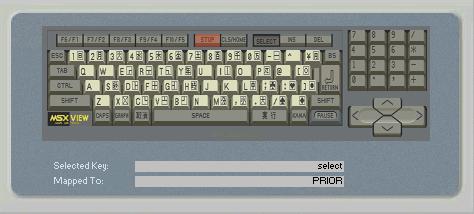
2nd STEP
press on
the PageUp key of your PC
keyboard
by doing
that, the new mapping is detected by the
emulator and displayed (in this example,
PRIOR is the universal word used in the
keyboard's world for the PageUp key)
besides, the current MSX key concerned by
the PageUp key of the PC keyboard (by
default, it's the STOP key) will become
red
3rd STEP
repeat eventually the 2
first steps for other keys, then click on
the OK button of the
Input editor to save the
configuration
Logically, you
should map the MSX STOP key to the END
key of the PC keyboard, by using the same
procedure, to get a coherent alternative
keyboard ! |
If you want to create a complete new keyboard
configuration, it will require some time and
patience, but, generally, it's easier to only
change the keys that interest you.
The keys for which you don't have made any change
will remained defined by the BIOS of the emulated
machine.
Questions and answers
Why my keyboard doesn't seem to
respond or gets wrong output when I press some
keys ?
First thing first, the routine
procedure is to check your keyboard configuration
on your Windows OS. Be sure that you have a
correct keyboard (driver) configuration that
matches your locale. This means that you should
not use a certain language keyboard that doesn't
match your OS language. (i.e. english layout
keyboard on japanese OS). Such use can cause
unpredictable result when using blueMSX.
Beware that MSX bios chooses which keyboard
layout are being used. So if you boot an European
MSX machine, then you will have English keyboard
layout which matches the MSX keys accordingly.
You will most likely to get different output if a
Japanese MSX bios is used on an English keyboard.
This is how blueMSX is designed and that's a
normal behavior.
It can happen that some keyboards have problems
with specific keys (like the Kana key on a
Japanese keyboard). You can solve this kind of
problems by using the Input
Editor.
Why my keyboard seems to hang when I
press many keys at the same time ?
This is not a blueMSX bug, but a problem with
some PC keyboards, that act very strange when
many keys are pressed at the same time. The
maximum keys that can be pressed together can
vary from keyboard to keyboard, and this problem
can also only happen with some combinations of
keys like Right + Left + End or Down + Left +
Spacebar.
You can find a solution in most cases by using
the keys of the numpad :
- Use the Input Editor to change
the mapping of the 4 arrows;
- Think as 8,4,6,2 keys as arrows and you should
be able to use some combinations that don't work
with the arrows.
By using this trick, the above examples become 6+4+End
and 2+4+Spacebar.
Back to menu